How to Run a Local AI on Raspberry Pi Using Ollama and Gemma (2026 Guide)
From setting up Ollama and downloading Gemma, to wiring up the microphone and speaker, to running the complete voice assistant live on a Raspberry Pi 4.
You can run a local AI model on a Raspberry Pi 4 using Ollama and Gemma 3 1B. The full setup requires enabling CORS, binding Ollama to all network interfaces with OLLAMA_HOST=0.0.0.0, and fixing a persistent download stall bug using OLLAMA_EXPERIMENT=client2 and OLLAMA_REGISTRY_MAXSTREAMS=1. For a Raspberry Pi 4 with 2GB RAM, use gemma3:1b — the larger Gemma 4 e2b model requires at least 4GB of usable RAM to run inference.
Project at a Glance
| Detail | Value |
|---|---|
| Difficulty | Intermediate |
| Time Required | 2 to 6 hours (mostly download time) |
| Hardware | Raspberry Pi 4 (2GB or 8GB RAM) |
| Camera | Pi Camera Module Rev 1.3 (optional) |
| Model Used | gemma3:1b (for 2GB Pi), gemma4:e2b (for 8GB Pi) |
| Software | Ollama, Raspberry Pi OS 64-bit |
| Cost | Zero (software is free and open source) |
| Internet Required | Only for initial model download |
hardware and software Required
My test setup was a Raspberry Pi 4 with 2GB of RAM running Raspberry Pi OS 64-bit (Bookworm). I was connected over SSH from a MacBook on the same local network, with the Pi running headless. I also had a Pi Camera Module Rev 1.3 attached, though the camera was not used for the initial AI setup. The Pi was connected over WiFi with a signal strength of -40 dBm, which is excellent — though this turned out to matter more than I expected.
On the software side, the only thing you need to install is Ollama. It handles everything else: model download, quantization management, and serving the API. There is no need to install Python ML frameworks, CUDA drivers, or anything heavy. One install script, one pull command, and you have a running LLM server — in theory. In practice, I ran into several real problems that took significant time to diagnose.
Here is what I used:
- Raspberry Pi 4 (2GB RAM, though 8GB is strongly recommended)
- Raspberry Pi OS Bookworm 64-bit
- 32GB microSD card (minimum — 64GB preferred)
- SSH access from another machine on the same network
- Ollama (latest version, installed via the official install script)
- tmux (for keeping download sessions alive over SSH)
Video Tutorial
Prefer to follow along with a video? We have a full step-by-step video tutorial covering everything in this article — from setting up Ollama and downloading Gemma, to wiring up the microphone and speaker, to running the complete voice assistant live on a Raspberry Pi 4.
Part 1 — How to Run Google Gemma Locally on Raspberry Pi 4
Covers installing Ollama, downloading Gemma, testing it in the terminal, and setting up the web chat console.

Part 2 — How to Build a 100% Local Voice Assistant on Raspberry Pi 4
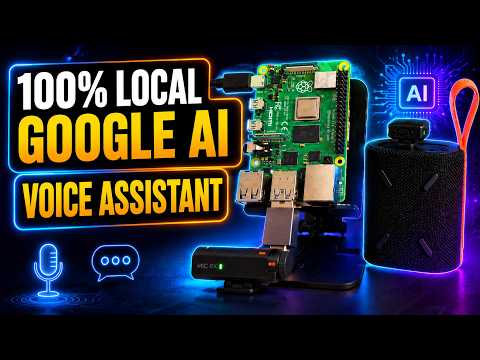
Covers setting up the microphone and speaker, installing Whisper and Piper TTS, writing the voice assistant script, and a full live demo.
What is Ollama and why is it the best way to run AI on Raspberry Pi?
Ollama is a free, open-source tool that lets you download and run large language models locally on your own hardware with a single command. It handles everything that would normally require significant ML engineering knowledge: model quantization, memory management, API serving, and hardware detection. You do not need to know anything about PyTorch, CUDA, or transformer architectures to get a model running — you just install Ollama, run a pull command, and the model is ready.
What makes Ollama particularly well-suited for Raspberry Pi is its ARM64 support and its lightweight API server. Once installed, Ollama runs as a background systemd service and exposes a REST API on port 11434. Any application on your network — a Python script, a web browser, a Node.js app, or even a bash script using curl — can send chat requests to that API and get responses back from a locally running model. There is no cloud involved, no API key required, and no data leaving your machine.
Ollama also makes model management simple. You can pull multiple models, switch between them with a single flag, and remove ones you no longer need to free up disk space. The model library at ollama.com/library covers dozens of open-source models including Google’s Gemma family, Meta’s Llama, Microsoft’s Phi, and TinyLlama. For Raspberry Pi specifically, the models under 2GB are the practical sweet spot — they fit in RAM, load in under a minute, and leave enough headroom for the OS and other processes.
How do you install Ollama on a Raspberry Pi?
Installing Ollama on ARM64 Linux is genuinely straightforward. The official install script detects your architecture and pulls the correct binary. Run the following on your Pi:
curl -fsSL https://ollama.com/install.sh | sh
Once installed, Ollama runs as a systemd service automatically. You can verify it is running with the following command, which also shows the exact address it is listening on — and that address matters a lot, as I discovered later.
sudo systemctl status ollama
To list models you have already pulled, use the list command. To browse available models, the search command was added in newer versions of Ollama — but my Pi was running an older build where search was not yet available. If you hit the same error, just visit ollama.com/library in a browser to find model names and tags.
ollama list
Which Gemma model actually fits on a Raspberry Pi 4?
This is the question that matters most before you start downloading anything. Gemma 4 was released in April 2026 with two edge variants: e2b (effective 2 billion parameters) and e4b (effective 4 billion). The e2b model sounds small, but at Q4 quantization it requires approximately 3.2GB of usable RAM for inference — not just to download. I learned this the hard way.
| Model | Download Size | RAM for Inference | Pi 4 (2GB) | Pi 4 (8GB) |
|---|---|---|---|---|
| gemma3:1b | ~800MB | ~1.2GB | Works well | Works well |
| gemma4:e2b | 7.2GB | ~3.2GB | Fails at runtime | Works (slow) |
| gemma4:e4b | ~9.6GB | ~5GB | No | Tight |
| tinyllama | ~600MB | ~900MB | Works well | Works well |
| phi3:mini | ~2.2GB | ~2.8GB | No | Yes |
My Pi 4 has 2GB of RAM. After downloading the full 7.2GB gemma4:e2b model and attempting to run it, Ollama returned a clear error: the model requires 7.2GiB of system memory and only 3.2GiB is available. Ollama cannot swap the model weights to disk for inference the way it can stage downloads. If you have a 2GB Pi, use gemma3:1b. If you have an 8GB Pi, gemma4:e2b will work at around 2 to 5 tokens per second.
Why does the Ollama model download keep restarting and reverting?
This was the most frustrating part of the entire project, and it is a known bug. The download would start at 5 MB/s, reach around 6 to 7 percent, then stall and restart from the last checkpoint. I went through multiple rounds of diagnostics before finding the actual cause and the correct fix.
The root cause, documented in Ollama GitHub issue 8484, is a hardcoded 5-second timeout in Ollama’s download engine. When the CDN does not deliver a data chunk within 5 seconds — which happens frequently on slower connections or when the Pi’s ARM client gets rate-limited by the registry — Ollama kills and restarts that download part. By default it opens 16 parallel download streams simultaneously, which makes the stalling even worse on a constrained connection.
I tried several fixes before finding the one that actually worked. Setting OLLAMA_DOWNLOAD_PARTS=1 helped reduce parallelism but did not fully solve it. Setting OLLAMA_LOAD_TIMEOUT=0 made no difference for downloads. The fix that worked was a combination of two environment variables that were mentioned in the GitHub thread:
sudo nano /etc/systemd/system/ollama.service.d/override.conf
[Service]Environment="OLLAMA_HOST=0.0.0.0:11434"Environment="OLLAMA_ORIGINS=*"Environment="OLLAMA_DOWNLOAD_PARTS=1"Environment="OLLAMA_EXPERIMENT=client2"Environment="OLLAMA_REGISTRY_MAXSTREAMS=1"
sudo systemctl daemon-reloadsudo systemctl restart ollama
The key variables here are OLLAMA_EXPERIMENT=client2 and OLLAMA_REGISTRY_MAXSTREAMS=1. The client2 experiment enables a newer download client that handles stream management differently, and limiting MAXSTREAMS to 1 forces a single sequential download stream. After applying both, the download ran continuously and completed without a single restart. This is what I now call the RootSaid Fix for Ollama download stalls on ARM devices.
One more important thing: always run large downloads inside a tmux session. If your SSH connection drops mid-download, the process dies and you lose progress on the current chunk. Install tmux with the following, then start a named session before running any ollama pull command.
sudo apt install tmux -ytmux new -s ollamaollama pull gemma3:1b# Detach safely: Ctrl+B then D# Reattach later: tmux attach -t ollama
Step-by-step: How do I get Gemma running on Raspberry Pi from scratch?
Here is the complete process in order, incorporating everything I learned from the errors along the way.
Step 1: Update your system and install Ollama. Always update first — Ollama’s ARM binary is updated frequently and older versions lack important features and bug fixes.
sudo apt update && sudo apt upgrade -ycurl -fsSL https://ollama.com/install.sh | sh
Step 2: Create the systemd override directory and configuration file. This is where all environment variables live. Do not use systemctl edit — on some Pi OS builds the interactive editor produces an empty file and discards your changes silently.
sudo mkdir -p /etc/systemd/system/ollama.service.d/sudo nano /etc/systemd/system/ollama.service.d/override.conf
Paste the following into the file, save with Ctrl+X, then Y, then Enter.
[Service]Environment="OLLAMA_HOST=0.0.0.0:11434"Environment="OLLAMA_ORIGINS=*"Environment="OLLAMA_DOWNLOAD_PARTS=1"Environment="OLLAMA_EXPERIMENT=client2"Environment="OLLAMA_REGISTRY_MAXSTREAMS=1"
Step 3: Reload systemd and restart Ollama. Then verify the environment variables are applied and that Ollama is listening on all interfaces, not just localhost.
sudo systemctl daemon-reloadsudo systemctl restart ollamasudo systemctl show ollama | grep -E "OLLAMA|Listening"sudo systemctl status ollama | grep Listening
You want to see “Listening on [::]:11434” in the output. If you see “Listening on 127.0.0.1:11434” it means OLLAMA_HOST was not applied and the API is locked to localhost only — your browser and other devices on the network cannot reach it.
Step 4: Add swap space. Even on an 8GB Pi, swap space protects you during model loading. On a 2GB Pi it is essencial for keeping the system stable while Ollama manages its process memory.
sudo fallocate -l 4G /swapfilesudo chmod 600 /swapfilesudo mkswap /swapfilesudo swapon /swapfileecho '/swapfile none swap sw 0 0' | sudo tee -a /etc/fstab
Step 5: Pull the model inside a tmux session. Choose your model based on your RAM. For a 2GB Pi, use gemma3:1b. For an 8GB Pi, you can try gemma4:e2b.
tmux new -s pullollama pull gemma3:1b
Step 6: Once the download completes, test the model from the terminal before doing anything else. This confirms inference works before you build anything on top of it.
ollama run gemma3:1b "You are running locally on a Raspberry Pi with no internet. Write a short poem about being a tiny AI inside a credit-card sized computer, dreaming of bigger servers."
How to build a web chat interface for Gemma on Raspberry Pi?
Running Gemma from the terminal is functional but not impressive for a demo or a shared home network tool. I built a lightweight single-file HTML chat interface that communicates directly with the Ollama API over the local network. No Node.js, no Python backend, no build step — just one HTML file served by Python’s built-in HTTP server.
The interface uses streaming responses via the Ollama /api/chat endpoint, which means tokens appear in real-time as the model generates them, exactly like a commercial chat interface. It also auto-detects installed models by querying /api/tags on connect, shows tokens-per-second and total generation time after each response, and includes the full conversation history in each API call for multi-turn context.
Save the HTML file to your Pi’s home directory, then serve it with Python on port 8080:
<!DOCTYPE html><html lang="en"><head><meta charset="UTF-8"><meta name="viewport" content="width=device-width, initial-scale=1.0"><title>RootSaid AI Base</title><link href="https://fonts.googleapis.com/css2?family=DM+Sans:ital,opsz,wght@0,9..40,300;0,9..40,400;0,9..40,500;0,9..40,600;1,9..40,300&family=DM+Mono:wght@400;500&display=swap" rel="stylesheet"><style> *, *::before, *::after { box-sizing: border-box; margin: 0; padding: 0; } :root { --bg: #f0f4f9; --surface: #ffffff; --surface2: #e9eef6; --border: #dde3ea; --text: #1f2937; --text-muted: #6b7280; --text-light: #9ca3af; --accent-blue: #1a73e8; --gradient: linear-gradient(135deg, #4285f4, #9c27b0, #e8431a); --gradient2: linear-gradient(90deg, #4285f4 0%, #9333ea 50%, #ec4899 100%); --shadow: 0 1px 3px rgba(0,0,0,0.08), 0 1px 2px rgba(0,0,0,0.06); --shadow-md: 0 4px 12px rgba(0,0,0,0.08); --radius: 24px; --radius-sm: 12px; } html, body { height: 100%; font-family: 'DM Sans', sans-serif; background: var(--bg); color: var(--text); -webkit-font-smoothing: antialiased; } .layout { display: flex; height: 100vh; overflow: hidden; } /* Sidebar */ .sidebar { width: 264px; background: #f8fafc; border-right: 1px solid var(--border); display: flex; flex-direction: column; flex-shrink: 0; padding: 20px 14px; gap: 6px; } .brand { display: flex; align-items: center; gap: 10px; padding: 8px 10px; margin-bottom: 10px; } .brand-icon { width: 36px; height: 36px; border-radius: 50%; background: var(--gradient); display: flex; align-items: center; justify-content: center; flex-shrink: 0; } .brand-icon svg { width: 20px; height: 20px; } .brand-name { font-size: 18px; font-weight: 600; letter-spacing: -0.3px; background: var(--gradient2); -webkit-background-clip: text; -webkit-text-fill-color: transparent; background-clip: text; } .new-chat-btn { display: flex; align-items: center; gap: 10px; padding: 10px 16px; border-radius: 50px; border: 1px solid var(--border); background: var(--surface); color: var(--text); font-family: 'DM Sans', sans-serif; font-size: 14px; font-weight: 500; cursor: pointer; transition: all 0.2s; box-shadow: var(--shadow); margin-bottom: 6px; } .new-chat-btn:hover { background: var(--surface2); box-shadow: var(--shadow-md); } .new-chat-btn svg { width: 18px; height: 18px; color: var(--text-muted); } .sidebar-label { font-size: 11px; font-weight: 600; color: var(--text-light); letter-spacing: 0.8px; text-transform: uppercase; padding: 4px 10px; margin-top: 6px; } .sidebar-item { display: flex; align-items: center; gap: 10px; padding: 10px 10px; border-radius: var(--radius-sm); font-size: 13.5px; color: var(--text-muted); cursor: pointer; transition: all 0.15s; white-space: nowrap; overflow: hidden; text-overflow: ellipsis; } .sidebar-item:hover { background: var(--surface2); color: var(--text); } .sidebar-item.active { background: #e8f0fe; color: var(--accent-blue); font-weight: 500; } .sidebar-item svg { width: 16px; height: 16px; flex-shrink: 0; } /* Config block */ .config-section { margin-top: auto; padding: 14px; background: var(--surface); border-radius: var(--radius-sm); border: 1px solid var(--border); } .config-section label { font-size: 11px; font-weight: 600; color: var(--text-light); letter-spacing: 0.5px; text-transform: uppercase; display: block; margin-bottom: 5px; } .config-section label + label { margin-top: 8px; } .config-input { width: 100%; padding: 7px 10px; border: 1px solid var(--border); border-radius: 8px; font-family: 'DM Mono', monospace; font-size: 11px; color: var(--text); background: var(--bg); outline: none; margin-bottom: 4px; transition: border-color 0.2s; } .config-input:focus { border-color: var(--accent-blue); } .model-select { width: 100%; padding: 7px 10px; border: 1px solid var(--border); border-radius: 8px; font-family: 'DM Sans', sans-serif; font-size: 12px; color: var(--text); background: var(--bg); outline: none; cursor: pointer; margin-bottom: 8px; } .connect-btn { width: 100%; padding: 8px; border-radius: 8px; border: none; background: var(--accent-blue); color: white; font-family: 'DM Sans', sans-serif; font-size: 13px; font-weight: 500; cursor: pointer; transition: opacity 0.2s; } .connect-btn:hover { opacity: 0.88; } .status-row { display: flex; align-items: center; gap: 6px; font-size: 11px; color: var(--text-muted); margin-top: 8px; } .status-dot { width: 7px; height: 7px; border-radius: 50%; background: var(--text-light); flex-shrink: 0; transition: background 0.3s; } .status-dot.online { background: #22c55e; box-shadow: 0 0 5px #22c55e88; animation: pulse 2s infinite; } .status-dot.error { background: #ef4444; } @keyframes pulse { 0%,100%{opacity:1}50%{opacity:.4} } /* Main */ .main { flex: 1; display: flex; flex-direction: column; overflow: hidden; } #messages { flex: 1; overflow-y: auto; padding: 32px 0 16px; scroll-behavior: smooth; } #messages::-webkit-scrollbar { width: 6px; } #messages::-webkit-scrollbar-track { background: transparent; } #messages::-webkit-scrollbar-thumb { background: var(--border); border-radius: 3px; } /* Welcome */ .welcome { display: flex; flex-direction: column; align-items: center; padding: 56px 40px 40px; text-align: center; max-width: 680px; margin: 0 auto; opacity: 0; animation: fadeUp 0.5s ease forwards 0.2s; } @keyframes fadeUp { from{opacity:0;transform:translateY(16px)} to{opacity:1;transform:translateY(0)} } .welcome-greeting { font-size: 36px; font-weight: 300; letter-spacing: -0.5px; margin-bottom: 10px; line-height: 1.2; } .welcome-greeting strong { font-weight: 600; background: var(--gradient2); -webkit-background-clip: text; -webkit-text-fill-color: transparent; background-clip: text; } .welcome-sub { font-size: 15px; color: var(--text-muted); font-weight: 300; margin-bottom: 40px; line-height: 1.65; } .suggestions-grid { display: grid; grid-template-columns: 1fr 1fr; gap: 12px; width: 100%; max-width: 560px; } .suggestion-card { background: var(--surface); border: 1px solid var(--border); border-radius: var(--radius-sm); padding: 16px; text-align: left; cursor: pointer; transition: all 0.2s; box-shadow: var(--shadow); font-size: 13.5px; color: var(--text); line-height: 1.45; } .suggestion-card:hover { box-shadow: var(--shadow-md); border-color: #c7d2fe; transform: translateY(-1px); } .suggestion-card .icon { font-size: 20px; margin-bottom: 8px; display: block; } /* Messages */ .message-row { max-width: 768px; margin: 0 auto; padding: 6px 28px; width: 100%; opacity: 0; animation: fadeUp 0.3s ease forwards; } .message-row.user { display: flex; justify-content: flex-end; } .message-row.assistant { display: flex; justify-content: flex-start; gap: 12px; } .ai-avatar { width: 34px; height: 34px; border-radius: 50%; background: var(--gradient); display: flex; align-items: center; justify-content: center; flex-shrink: 0; margin-top: 2px; font-size: 15px; color: white; } .user-bubble { background: var(--surface2); border-radius: 20px 20px 4px 20px; padding: 12px 18px; font-size: 14.5px; line-height: 1.6; max-width: 75%; color: var(--text); box-shadow: var(--shadow); } .ai-bubble { flex: 1; font-size: 14.5px; line-height: 1.75; color: var(--text); padding-top: 4px; max-width: calc(100% - 46px); } .ai-bubble .model-label { font-size: 12px; font-weight: 600; color: var(--text-muted); margin-bottom: 6px; display: flex; align-items: center; gap: 6px; } .ai-bubble .model-label span { background: var(--gradient2); -webkit-background-clip: text; -webkit-text-fill-color: transparent; background-clip: text; font-weight: 600; } .ai-bubble pre { background: #1e293b; color: #e2e8f0; border-radius: 10px; padding: 14px 16px; margin: 10px 0; overflow-x: auto; font-family: 'DM Mono', monospace; font-size: 13px; line-height: 1.6; } .ai-bubble code { font-family: 'DM Mono', monospace; background: var(--surface2); padding: 2px 6px; border-radius: 4px; font-size: 13px; color: #9333ea; } .ai-bubble pre code { background: none; color: #e2e8f0; padding: 0; } .stats-row { display: flex; gap: 14px; margin-top: 10px; font-size: 11px; color: var(--text-light); align-items: center; } .stats-row strong { color: var(--text-muted); font-weight: 500; } /* Typing */ .typing-dots { display: flex; gap: 5px; align-items: center; padding: 6px 0; } .typing-dots span { width: 8px; height: 8px; border-radius: 50%; animation: typingBounce 1.4s infinite ease-in-out; } .typing-dots span:nth-child(1) { background: #4285f4; } .typing-dots span:nth-child(2) { background: #9333ea; animation-delay: .2s; } .typing-dots span:nth-child(3) { background: #ec4899; animation-delay: .4s; } @keyframes typingBounce { 0%,60%,100%{transform:translateY(0);opacity:.5}30%{transform:translateY(-6px);opacity:1} } /* Error */ .error-row { max-width: 768px; margin: 8px auto; padding: 0 28px; } .error-bubble { background: #fef2f2; border: 1px solid #fecaca; border-radius: var(--radius-sm); padding: 12px 16px; font-size: 13px; color: #dc2626; } /* Input */ .input-area { padding: 12px 24px 0; flex-shrink: 0; } .input-container { max-width: 768px; margin: 0 auto; } .input-box { display: flex; align-items: flex-end; gap: 8px; background: var(--surface); border: 1px solid var(--border); border-radius: var(--radius); padding: 12px 16px; box-shadow: var(--shadow-md); transition: border-color 0.2s, box-shadow 0.2s; } .input-box:focus-within { border-color: #c7d2fe; box-shadow: 0 4px 16px rgba(66,133,244,0.12); } #prompt { flex: 1; border: none; outline: none; background: transparent; font-family: 'DM Sans', sans-serif; font-size: 15px; color: var(--text); resize: none; max-height: 180px; min-height: 24px; line-height: 1.5; } #prompt::placeholder { color: var(--text-light); } .send-btn { width: 38px; height: 38px; border-radius: 50%; border: none; background: var(--gradient); color: white; cursor: pointer; display: flex; align-items: center; justify-content: center; flex-shrink: 0; transition: all 0.2s; box-shadow: 0 2px 8px rgba(66,133,244,0.3); } .send-btn:hover { transform: scale(1.08); box-shadow: 0 4px 12px rgba(66,133,244,0.4); } .send-btn:disabled { background: var(--border); box-shadow: none; cursor: not-allowed; transform: none; } .send-btn svg { width: 16px; height: 16px; } .input-footer { display: flex; justify-content: space-between; align-items: center; max-width: 768px; margin: 7px auto 0; padding: 0 4px; } .input-hint { font-size: 11.5px; color: var(--text-light); } .clear-btn { background: none; border: none; font-family: 'DM Sans', sans-serif; font-size: 12px; color: var(--text-light); cursor: pointer; padding: 4px 8px; border-radius: 6px; transition: all 0.15s; } .clear-btn:hover { color: #ef4444; background: #fef2f2; } /* Footer */ .page-footer { text-align: center; padding: 10px 24px 14px; font-size: 12px; color: var(--text-light); flex-shrink: 0; } .page-footer a { color: var(--accent-blue); text-decoration: none; font-weight: 500; transition: opacity 0.2s; } .page-footer a:hover { opacity: 0.7; text-decoration: underline; }</style></head><body><div class="layout"> <!-- Sidebar --> <aside class="sidebar"> <div class="brand"> <div class="brand-icon"> <svg viewBox="0 0 24 24" fill="none" stroke="white" stroke-width="2"> <circle cx="12" cy="12" r="3"/> <path d="M12 2v4M12 18v4M4.93 4.93l2.83 2.83M16.24 16.24l2.83 2.83M2 12h4M18 12h4M4.93 19.07l2.83-2.83M16.24 7.76l2.83-2.83"/> </svg> </div> <span class="brand-name">RootSaid AI</span> </div> <button class="new-chat-btn" onclick="clearChat()"> <svg viewBox="0 0 24 24" fill="none" stroke="currentColor" stroke-width="2"> <line x1="12" y1="5" x2="12" y2="19"/><line x1="5" y1="12" x2="19" y2="12"/> </svg> New chat </button> <div class="sidebar-label">Recent</div> <div class="sidebar-item active"> <svg viewBox="0 0 24 24" fill="none" stroke="currentColor" stroke-width="1.5"> <path d="M21 15a2 2 0 01-2 2H7l-4 4V5a2 2 0 012-2h14a2 2 0 012 2z"/> </svg> Current chat </div> <div class="config-section"> <label>Ollama Host</label> <input class="config-input" id="hostInput" value="http://localhost:11434" placeholder="http://raspberrypi.local:11434" /> <label>Model</label> <select class="model-select" id="modelSelect"> <option value="gemma3:1b">gemma3:1b</option> <option value="gemma4:e2b">gemma4:e2b</option> <option value="tinyllama">tinyllama</option> <option value="phi3:mini">phi3:mini</option> <option value="moondream">moondream</option> </select> <button class="connect-btn" onclick="checkConnection()">Connect</button> <div class="status-row"> <div class="status-dot" id="statusDot"></div> <span id="statusText">Not connected</span> </div> </div> </aside> <!-- Main --> <main class="main"> <div id="messages"> <div class="welcome" id="welcome"> <div class="welcome-greeting">Hello, <strong>let's explore</strong></div> <p class="welcome-sub">Gemma running locally on your Raspberry Pi.<br>Private, offline, and fully yours.</p> <div class="suggestions-grid"> <div class="suggestion-card" onclick="useSuggestion(this)"> <span class="icon">💡</span>Give me 5 creative Raspberry Pi project ideas </div> <div class="suggestion-card" onclick="useSuggestion(this)"> <span class="icon">🐍</span>Write a Python script to blink an LED via GPIO </div> <div class="suggestion-card" onclick="useSuggestion(this)"> <span class="icon">🤖</span>Advantages of running AI locally vs cloud? </div> <div class="suggestion-card" onclick="useSuggestion(this)"> <span class="icon">⚡</span>Explain machine learning in simple terms </div> </div> </div> </div> <div class="input-area"> <div class="input-container"> <div class="input-box"> <textarea id="prompt" placeholder="Ask Gemma anything..." rows="1"></textarea> <button class="send-btn" id="sendBtn" onclick="sendMessage()"> <svg viewBox="0 0 24 24" fill="none" stroke="white" stroke-width="2.5"> <line x1="22" y1="2" x2="11" y2="13"/> <polygon points="22 2 15 22 11 13 2 9 22 2"/> </svg> </button> </div> <div class="input-footer"> <span class="input-hint">Enter to send · Shift+Enter for new line</span> <button class="clear-btn" onclick="clearChat()">Clear chat</button> </div> </div> </div> <div class="page-footer"> Gemma running locally on Raspberry Pi · <a href="https://rootsaid.com/embedded-systems/gemini-ai-in-raspberry-pi" target="_blank" rel="noopener"> Read the full guide on RootSaid → </a> </div> </main></div><script> const messagesEl = document.getElementById('messages'); const promptEl = document.getElementById('prompt'); const sendBtn = document.getElementById('sendBtn'); const statusDot = document.getElementById('statusDot'); const statusText = document.getElementById('statusText'); let welcomeEl = document.getElementById('welcome'); let conversationHistory = []; let isGenerating = false; promptEl.addEventListener('input', () => { promptEl.style.height = 'auto'; promptEl.style.height = Math.min(promptEl.scrollHeight, 180) + 'px'; }); promptEl.addEventListener('keydown', (e) => { if (e.key === 'Enter' && !e.shiftKey) { e.preventDefault(); if (!isGenerating) sendMessage(); } }); function getHost() { return document.getElementById('hostInput').value.trim().replace(/\/$/, ''); } function getModel() { return document.getElementById('modelSelect').value; } async function checkConnection() { statusDot.className = 'status-dot'; statusText.textContent = 'Connecting…'; try { const res = await fetch(`${getHost()}/api/tags`, { signal: AbortSignal.timeout(5000) }); if (!res.ok) throw new Error(); const data = await res.json(); statusDot.className = 'status-dot online'; statusText.textContent = 'Connected'; if (data.models?.length) { const sel = document.getElementById('modelSelect'); sel.innerHTML = ''; data.models.forEach(m => { const o = document.createElement('option'); o.value = m.name; o.textContent = m.name; sel.appendChild(o); }); } } catch { statusDot.className = 'status-dot error'; statusText.textContent = 'Unreachable'; } } function hideWelcome() { welcomeEl && (welcomeEl.style.display = 'none'); } function useSuggestion(el) { promptEl.value = el.innerText.replace(/^[^\w]*/, '').trim(); sendMessage(); } function addUserMessage(text) { hideWelcome(); const row = document.createElement('div'); row.className = 'message-row user'; row.innerHTML = `<div class="user-bubble">${escapeHtml(text)}</div>`; messagesEl.appendChild(row); scrollToBottom(); } function addTyping() { hideWelcome(); const row = document.createElement('div'); row.className = 'message-row assistant'; row.id = 'typing'; row.innerHTML = ` <div class="ai-avatar">✦</div> <div class="ai-bubble"> <div class="model-label"><span>${getModel()}</span></div> <div class="typing-dots"><span></span><span></span><span></span></div> </div>`; messagesEl.appendChild(row); scrollToBottom(); } function removeTyping() { document.getElementById('typing')?.remove(); } function addAiMessage() { hideWelcome(); const row = document.createElement('div'); row.className = 'message-row assistant'; row.innerHTML = ` <div class="ai-avatar">✦</div> <div class="ai-bubble"> <div class="model-label"><span>${getModel()}</span></div> <div class="content"></div> </div>`; messagesEl.appendChild(row); scrollToBottom(); return row.querySelector('.content'); } function addError(msg) { const row = document.createElement('div'); row.className = 'error-row'; row.innerHTML = `<div class="error-bubble">⚠ ${msg}</div>`; messagesEl.appendChild(row); scrollToBottom(); } function scrollToBottom() { messagesEl.scrollTop = messagesEl.scrollHeight; } function escapeHtml(str) { return str.replace(/&/g,'&').replace(/</g,'<').replace(/>/g,'>').replace(/\n/g,'<br>'); } function formatContent(text) { return text .replace(/```([\s\S]*?)```/g, '<pre><code>$1</code></pre>') .replace(/`([^`\n]+)`/g, '<code>$1</code>') .replace(/\*\*(.*?)\*\*/g, '<strong>$1</strong>') .replace(/\*(.*?)\*/g, '<em>$1</em>') .replace(/\n/g, '<br>'); } async function sendMessage() { const text = promptEl.value.trim(); if (!text || isGenerating) return; isGenerating = true; sendBtn.disabled = true; promptEl.value = ''; promptEl.style.height = 'auto'; addUserMessage(text); conversationHistory.push({ role: 'user', content: text }); addTyping(); try { const res = await fetch(`${getHost()}/api/chat`, { method: 'POST', headers: { 'Content-Type': 'application/json' }, body: JSON.stringify({ model: getModel(), messages: conversationHistory, stream: true }) }); if (!res.ok) throw new Error(`HTTP ${res.status}`); removeTyping(); const contentEl = addAiMessage(); let fullText = ''; const startTime = Date.now(); const reader = res.body.getReader(); const decoder = new TextDecoder(); while (true) { const { done, value } = await reader.read(); if (done) break; const lines = decoder.decode(value).split('\n').filter(l => l.trim()); for (const line of lines) { try { const data = JSON.parse(line); if (data.message?.content) { fullText += data.message.content; contentEl.innerHTML = formatContent(fullText); scrollToBottom(); } if (data.done && data.eval_count) { const elapsed = ((Date.now() - startTime) / 1000).toFixed(1); const tps = data.eval_duration ? (data.eval_count / (data.eval_duration / 1e9)).toFixed(1) : '?'; const s = document.createElement('div'); s.className = 'stats-row'; s.innerHTML = `<span>⏱ <strong>${elapsed}s</strong></span><span>⚡ <strong>${tps}</strong> tok/s</span><span>📊 <strong>${data.eval_count}</strong> tokens</span>`; contentEl.parentElement.appendChild(s); } } catch {} } } conversationHistory.push({ role: 'assistant', content: fullText }); } catch { removeTyping(); addError(`Could not reach Ollama at ${getHost()}. Make sure Ollama is running with OLLAMA_ORIGINS=* set.`); } isGenerating = false; sendBtn.disabled = false; promptEl.focus(); } function clearChat() { conversationHistory = []; messagesEl.innerHTML = ''; const w = document.createElement('div'); w.className = 'welcome'; w.id = 'welcome'; w.style.opacity = '0'; w.style.animation = 'fadeUp 0.5s ease forwards 0.1s'; w.innerHTML = ` <div class="welcome-greeting">Hello, <strong>let's explore</strong></div> <p class="welcome-sub">Gemma running locally on your Raspberry Pi.<br>Private, offline, and fully yours.</p> <div class="suggestions-grid"> <div class="suggestion-card"><span class="icon">💡</span>Give me 5 creative Raspberry Pi project ideas</div> <div class="suggestion-card"><span class="icon">🐍</span>Write a Python script to blink an LED via GPIO</div> <div class="suggestion-card"><span class="icon">🤖</span>Advantages of running AI locally vs cloud?</div> <div class="suggestion-card"><span class="icon">⚡</span>Explain machine learning in simple terms</div> </div>`; w.querySelectorAll('.suggestion-card').forEach(c => c.addEventListener('click', function(){ useSuggestion(this); })); messagesEl.appendChild(w); welcomeEl = w; } checkConnection();</script></body></html>
Now run the below command from to run the server using python´s inbuilt webserver (make sure you are in the right directory as that of the server file. Refer the video if needed).
python3 -m http.server 8080 --directory ~
Access it from any browser on your network at http://[your-pi-ip]:8080/gemma-console.html. In the sidebar, enter your Pi’s IP address as the Ollama host (for example http://192.168.1.143:11434) and click Connect. The status indicator should turn green and the model dropdown will populate with your installed models automatically.
If you get an “Unreachable” error after entering the correct IP, the most likely cause is that OLLAMA_ORIGINS=* is not applied, or that Ollama is still binding to 127.0.0.1 instead of 0.0.0.0. Double-check the override.conf file and verify with the status check from Step 3 above.
What is the real-world performance of Gemma on a Raspberry Pi 4?
I will be honest about this because most articles are not. On a Pi 4 with 2GB RAM running gemma3:1b, you can expect approximately 3 to 5 tokens per second for short prompts. A 50-token response takes around 12 to 18 seconds. A longer 150-token response can take 40 to 60 seconds. This is not interactive speed by any modern standard, but it is entirely usable for offline assistants, batch processing tasks, and home automation where you are not waiting at a keyboard.
The Pi 4 does all inference on the ARM CPU — there is no GPU acceleration available for LLM workloads. This is the hard ceiling. If you need faster responses, a Pi 5 with 8GB RAM roughly doubles throughput, and adding a Google Coral USB Accelerator can help with specific vision tasks though it does not accelerate LLM inference directly. For most maker and home automation use cases I tested, the speed is acceptable once you design your workflow around it.
What project ideas work well with a local AI on Raspberry Pi?
The most compelling use cases are the ones that specifically benefit from being offline and private. A cloud AI is already fast and capable — the only reason to run local is if you want zero data leaving your network, zero subscription cost, or operation in an environment with no reliable internet. With that framing, here are the projects I think are most worth building.
The first is a natural language GPIO controller. You speak or type a command like “blink the red LED five times” and Gemma parses the intent and generates a structured response that a Python script translates into GPIO actions. The model runs locally, the GPIO stays local, and the whole pipeline works offline. The second is an offline security camera with AI description. My Pi Camera Rev 1.3 feeds frames into the moondream vision model (which fits in about 1.6GB of RAM), and Gemma generates a text description of what the camera sees. No cloud subscription, no image ever leaving your network. The third, which I plan to build next, is a voice assistant pipeline: a microphone feeds into Whisper for speech-to-text, the text goes to Gemma for reasoning, and the output goes to a text-to-speech engine through a speaker. Fully offline, fully private.
Why Should we run a local AI on a Raspberry Pi in the first place?
The idea came from a simple frustration: every AI assistant I used sends your prompts to a cloud server somewhere. For home automation triggers, private data analysis, and electronics projects, that is not acceptable. I wanted something that runs entirely on my local network, with zero data leaving the house. The Raspberry Pi 4 sitting on my desk — the same one running a camera module and some GPIO experiments — seemed like the perfect test bed for this.
The timing also lined up well. Google released Gemma 4 in April 2026 with edge-optimised variants specifically designed for low-RAM hardware like single-board computers. Ollama, the tool that makes running local LLMs as simple as a single terminal command, has matured significantly and now installs on ARM64 Linux without any compilation. The ecosystem is finally ready for this kind of project, and I wanted to document the real experience — including every error I hit along the way.
Troubleshooting
I want to document these specifically because they are not well-covered anywhere else. The first error was “ollama search: unknown command.” This is a version issue — the search subcommand was added in a recent Ollama release. The fix is to update Ollama using the same install script, which upgrades in place. After updating, the search command works. Alternatively, just use ollama.com/library in a browser.
The second error was the model download stalling at 6 to 7 percent and restarting. Our troubleshooting method here was to read the actual systemd journal during the download rather than guessing. Running journalctl -u ollama -f in a second terminal while the pull was running showed all 16 download parts stalling simultaneously at the same timestamp — a clear CDN-side issue, not a local network problem. That log output pointed me directly to the GitHub issue thread, which led to the OLLAMA_REGISTRY_MAXSTREAMS=1 and OLLAMA_EXPERIMENT=client2 solution.
The third error was “Unreachable” in the web console after Ollama was confirmed running. The fix here required reading the actual systemd status output carefully. The log line “Listening on 127.0.0.1:11434” revealed that Ollama was bound to localhost only. Setting OLLAMA_HOST=0.0.0.0:11434 in the override file changed that to “Listening on [::]:11434”, which exposes the API to all interfaces on the local network. After that, the browser could reach the API without any further changes.
The fourth issue was the model running on terminal but failing in the web console due to CORS. Browsers enforce strict cross-origin rules — a page served from port 8080 cannot make requests to port 11434 unless Ollama explicitly allows it. Setting OLLAMA_ORIGINS=* in the override file resolves this completely. Without it, the browser silently blocks every API request and the console shows Unreachable even when the API itself is healthy.
Final thoughts: is running local AI on Raspberry Pi actually worth it?
Yes, with realistic expectations. If you want ChatGPT speed on a Pi, you will be disappointed. If you want a private, offline, always-available AI assistant that costs nothing to run after the initial setup, and that you have complete control over, then yes — it is absolutely worth doing. The ecosystem has matured enough in 2026 that the setup is genuinely achievable in an afternoon, even if you hit the same download stall bug I did.
The bigger picture is what excites me most. A Raspberry Pi running a local LLM is not trying to replace cloud AI — it is filling a completely different niche. It is the AI that works when the internet is down. The AI that never sees your home automation commands or your private notes. The AI that costs $1.50 per month in electricity instead of $20 per month in subscriptions. For makers, educators, and anyone serious about privacy, that is a compelling proposition, and I think we have only scratched the surface of what is possible with this setup.