ROS 2 Tutorial for Beginners: Learn ROS 2 Without a Robot
ROS 2 tutorial for beginners in India: install ROS 2 Lyrical on Ubuntu or Raspberry Pi and learn nodes, topics, services and actions with turtlesim.
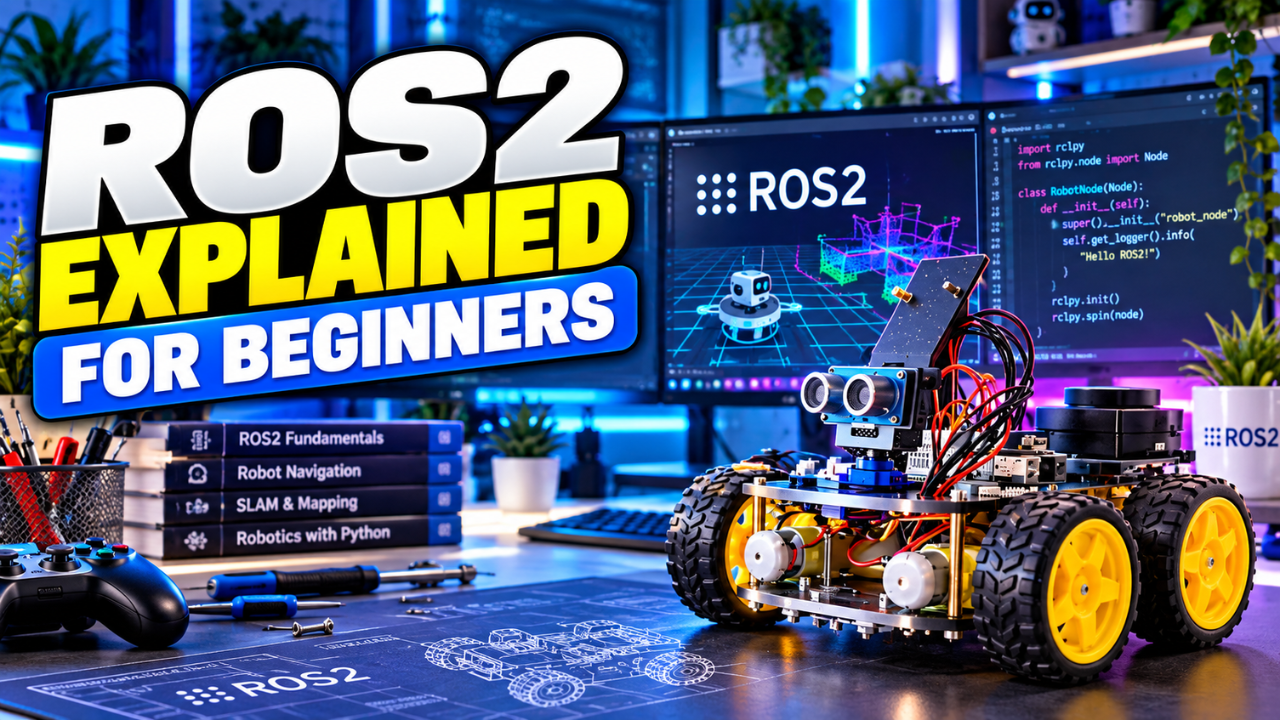
ROS 2 (Robot Operating System 2) is not an operating system. It is a framework: a set of tools, libraries and a communication system that runs on top of Linux, mainly Ubuntu. In this ROS 2 tutorial for beginners, you will install ROS 2 Lyrical Luth on Ubuntu 26.04 (on a PC or a Raspberry Pi 4) and learn nodes, topics, services and actions with turtlesim, a simulated robot. You do not need a real robot.
The guide has two parts. First, the core ideas in plain English. Then, every command you need, with the output you should expect and the errors you are most likely to hit.
What is ROS 2? A Framework, Not an Operating System
Think about your first robot. Most of the time, it is one big Arduino program, and that works fine. Now add a camera. Then AI. Then navigation. Then a robotic arm. That one program quickly becomes a big mess. Every robotics team faced this problem, and everyone kept writing the same code again and again. If you are still learning the basic parts of a robot, it helps to picture each part as its own small job.
That is the main idea of ROS 2. Instead of one big program, you split your robot into many small programs, and these programs talk to each other. ROS 2 gives you the tools, libraries and communication system to do this.
Nodes: One Small Program, One Job
In ROS 2, each small program is called a node. A node has one job and nothing else. For example, you can have a camera node, a motor node and a sensor node.
Topics and Messages: Publish and Subscribe
Nodes talk to each other using topics. One node publishes messages on a topic, and other nodes subscribe to that topic. Think of a WhatsApp group: when one person sends a message, everyone in the group gets it. A topic works the same way.
Services: One Question, One Answer
A service is a request and a response. One node asks, “What is the battery level?”, and another node sends back one answer.
Actions: Long Tasks with Progress and Cancel
An action is for a long task. You tell the robot, “Drive to the kitchen.” It sends progress updates like “I am 50% there”, and then “I have arrived.” If you change your mind on the way, you can cancel it.
Example: A Robot Car Built with ROS 2 Nodes
- The camera node publishes images.
- The detection node finds objects in those images.
- The planner node decides where to go.
- The motor node drives the wheels.
The best part: if you replace one node, the rest keep working. You can change the camera node without touching the motor node.
ROS 2 vs ROS 1: Which Should Beginners Learn?
Learn ROS 2 only. ROS 1 is the older version, and its last release, ROS Noetic, reached end of life on May 31, 2025. It no longer gets official support or security fixes. One clear design difference: ROS 1 depends on a central master, while in ROS 2 there is no central master and nodes find each other automatically.
When to Start Learning ROS 2
Be honest with yourself here. For your first robot, you do not need ROS 2. Learn Arduino and Python basics first, and follow a simple robotics learning roadmap. Move to ROS 2 when your robot has many sensors, a camera, or needs navigation. That is when splitting the work into nodes really pays off.
Prerequisites and Versions Used
- Computer: a 64-bit PC or VM (amd64), or a Raspberry Pi 4 (arm64).
- Operating system: Ubuntu 26.04 LTS (Resolute), 64-bit, with a desktop session. turtlesim opens a window, so a desktop is needed.
- ROS 2 release: ROS 2 Lyrical Luth, the current LTS release (May 2026, supported until May 2031).
- Skills: basic Linux terminal use (copy, paste, run a command).
- Internet connection: for downloading packages.
Exact ROS package version numbers change with every update, so Step 6 shows you how to record and lock the versions you install. Here is how Lyrical Luth supports the common beginner platforms:
| Platform | Architecture | Lyrical support tier | How to install |
|---|---|---|---|
| Ubuntu 26.04 (Resolute) | amd64 (PC) | Tier 1 | Debian packages (this guide) |
| Ubuntu 26.04 (Resolute) | arm64 (Raspberry Pi 4, 64-bit) | Tier 1 | Debian packages (this guide) |
| Ubuntu 24.04 (Noble) | amd64 / arm64 | Tier 3 | Build from source |
| Windows 11 (VS2022) | amd64 | Tier 1 | Pre-built archive |
📌 Official Resource: Full list of platforms and support tiers for ROS 2 Lyrical Luth. Visit Official Website
If you are on Ubuntu 24.04, Lyrical is Tier 3 there, which means building from source. For a beginner, the easier path is to install Ubuntu 26.04.
Step 1: Install Ubuntu 26.04 LTS (64-bit)
On a PC or VM, install Ubuntu 26.04 Desktop. On a Raspberry Pi 4, flash the 64-bit Ubuntu 26.04 image with Raspberry Pi Imager. If you are still deciding, read our guide on choosing an OS for your Pi. Then confirm your version:
lsb_release -cs
Expected output:
resolute
Step 2: Add Swap on a Low-RAM Raspberry Pi 4
Skip this step on a PC. On a Pi 4 with little RAM, a 2 GB swap file helps the install finish without running out of memory.
sudo fallocate -l 2G /swapfilesudo chmod 600 /swapfilesudo mkswap /swapfilesudo swapon /swapfileecho '/swapfile none swap sw 0 0' | sudo tee -a /etc/fstabfree -h
Expected output: the Swap row of free -h shows a total of about 2.0Gi.
Step 3: Set the Locale and Enable Universe
sudo apt update && sudo apt install localessudo locale-gen en_US en_US.UTF-8sudo update-locale LC_ALL=en_US.UTF-8 LANG=en_US.UTF-8export LANG=en_US.UTF-8sudo apt install software-properties-commonsudo add-apt-repository universelocale
Expected output: the locale command shows a line like this:
LANG=en_US.UTF-8
Step 4: Add the ROS 2 apt Source
This installs the official package that tells Ubuntu where to download ROS 2 from.
sudo apt update && sudo apt install curl -yexport ROS_APT_SOURCE_VERSION=$(curl -s https://api.github.com/repos/ros-infrastructure/ros-apt-source/releases/latest | grep -F "tag_name" | awk -F'"' '{print $4}')curl -L -o /tmp/ros2-apt-source.deb "https://github.com/ros-infrastructure/ros-apt-source/releases/download/${ROS_APT_SOURCE_VERSION}/ros2-apt-source_${ROS_APT_SOURCE_VERSION}.$(. /etc/os-release && echo ${UBUNTU_CODENAME:-${VERSION_CODENAME}})_all.deb"sudo dpkg -i /tmp/ros2-apt-source.debsudo apt update && sudo apt upgrade
Expected output: dpkg reports that ros2-apt-source is set up, and apt update finishes without errors.
📌 Official Resource: The official ROS 2 Lyrical installation guide for Ubuntu (deb packages). Visit Official Website
Step 5: Install ROS 2 Lyrical Luth
On a PC, install the full desktop variant:
sudo apt install ros-lyrical-desktop
On a low-RAM Pi 4, install only what this demo needs:
sudo apt install ros-lyrical-ros-base ros-lyrical-turtlesim ros-lyrical-rqt-graph
Expected output: apt downloads the packages and finishes without errors. The desktop install is large, so it can take a while.
Step 6: Record and Lock Your ROS 2 Package Versions
Once everything works, save the exact versions and stop them from changing on the next upgrade. This keeps a working setup working.
apt list --installed 'ros-lyrical-*' > ~/ros-lyrical-versions.txtsudo apt-mark hold $(dpkg-query -W -f='${Package}\n' 'ros-lyrical-*')
Expected output: one line per package, ending with set on hold. When you want to update later, run the same command with apt-mark unhold.
Step 7: Load ROS 2 in Every Terminal
echo 'source /opt/ros/lyrical/setup.bash' >> ~/.bashrcsource ~/.bashrcecho $ROS_DISTRO
Expected output:
lyrical
Step 8: Start turtlesim and the Keyboard Node
turtlesim is a simulated robot used in the official ROS 2 tutorials, so it is perfect for learning without hardware. Open three terminals. In Terminal 1, start the robot:
ros2 run turtlesim turtlesim_node
Expected output: a window opens with a turtle in the middle. In Terminal 2, start the keyboard node:
ros2 run turtlesim turtle_teleop_key
Expected output: instructions for the arrow keys and the rotation keys. Click on Terminal 2 and press the arrow keys. The turtle moves and draws a line.
Step 9: See ROS 2 Nodes and Topics in Action
In Terminal 3, list the running nodes:
ros2 node list
/teleop_turtle/turtlesim
Two small programs, one job each. Now list the topics:
ros2 topic list
/parameter_events/rosout/turtle1/cmd_vel/turtle1/color_sensor/turtle1/pose
When you press a key, the keyboard node publishes a move command on /turtle1/cmd_vel, and turtlesim subscribes to it. Now make your terminal a subscriber too:
ros2 topic echo /turtle1/pose
Expected output: a stream of messages with the fields x, y, theta, linear_velocity and angular_velocity. Drive the turtle and watch the numbers change. Press Ctrl+C to stop. You can also publish a command yourself:
ros2 topic pub --once /turtle1/cmd_vel geometry_msgs/msg/Twist "{linear: {x: 2.0}, angular: {z: 1.8}}"
Expected output: the terminal prints the message it published, and the turtle moves in a short curve. To see the whole system as a picture, run:
ros2 run rqt_graph rqt_graph
Expected output: a window showing the /teleop_turtle node connected to the /turtlesim node through the /turtle1/cmd_vel topic.
Step 10: Call a ROS 2 Service
Drive the turtle around to draw some lines, then clear the screen with one request:
ros2 service call /clear std_srvs/srv/Empty
requester: making request: std_srvs.srv.Empty_Request()response:std_srvs.srv.Empty_Response()
The lines disappear. One question, one answer. Now ask turtlesim to spawn a second turtle. In Lyrical, the turtlesim interface types live in the turtlesim_msgs package:
ros2 service call /spawn turtlesim_msgs/srv/Spawn "{x: 2, y: 2, theta: 0.2, name: ''}"
Expected output: a second turtle appears, and the response contains name='turtle2'.
Step 11: Send a ROS 2 Action Goal with Feedback
First, ask ROS 2 for the exact action type:
ros2 action list -t
/turtle1/rotate_absolute [turtlesim_msgs/action/RotateAbsolute]
Now send a goal to rotate the turtle, and ask for feedback:
ros2 action send_goal /turtle1/rotate_absolute turtlesim_msgs/action/RotateAbsolute "{theta: -1.57}" --feedback
Expected output: the goal is accepted, several Feedback: lines show the remaining rotation while the turtle turns, and then a final result is printed. To see a cancel, click on Terminal 2, press a rotation key such as G, then press F before the turn finishes. The keyboard node lists these keys when it starts.
📌 Official Resource: The official ROS 2 Lyrical tutorial on understanding actions with turtlesim. Visit Official Website
ROS 2 Command Cheat Sheet
| Concept | Command | What it shows |
|---|---|---|
| Nodes | ros2 node list | Running nodes |
| Topics | ros2 topic list | Available topics |
| Topics | ros2 topic echo /turtle1/pose | Live messages on a topic |
| Services | ros2 service call /clear std_srvs/srv/Empty | One request, one response |
| Actions | ros2 action list -t | Actions and their types |
| Graph | ros2 run rqt_graph rqt_graph | Nodes and topics as a diagram |
Common Errors and Fixes
ros2: command not found
ROS 2 is not loaded in that terminal. Load it, or redo Step 7 so it loads automatically:
source /opt/ros/lyrical/setup.bash
turtle_teleop_key: command not found
ROS nodes are not normal Linux commands. Start them with ros2 run and the package name:
ros2 run turtlesim turtle_teleop_key
ros2 node list Shows Nothing
First check that turtlesim and the keyboard node are still running. If they are, restart the ROS 2 background daemon, which caches the node list:
ros2 daemon stopros2 daemon startros2 node list
The passed action type is invalid
You are probably using an older tutorial that writes turtlesim/action/RotateAbsolute. In Lyrical, the type is turtlesim_msgs/action/RotateAbsolute. Always copy the type shown by ros2 action list -t. The same applies to services: use turtlesim_msgs/srv/Spawn.
rqt_graph: command not found
Start it through ROS 2, and install the package if it is missing (for example on the minimal Pi install):
sudo apt install ros-lyrical-rqt-graphros2 run rqt_graph rqt_graph
Frequently Asked Questions
Can I install ROS 2 Lyrical on Ubuntu 24.04?
Ubuntu 24.04 is a Tier 3 platform for Lyrical, so you would need to build it from source. For beginners, installing Ubuntu 26.04 and using the official Debian packages is much simpler.
Can a Raspberry Pi 4 run ROS 2?
Yes. Ubuntu 26.04 on arm64 is a Tier 1 platform for Lyrical, so the same Debian packages install on a Pi 4 running 64-bit Ubuntu. On a low-RAM Pi, add swap and install the smaller package set from Step 5.
Can I learn ROS 2 on Windows?
Windows 11 on amd64 is a Tier 1 platform for Lyrical, installed from a pre-built archive. Most beginner tutorials, including this one, use Ubuntu, so Ubuntu in a VM is the easier way to follow along.
Next Steps
- Write your first publisher and subscriber in Python: follow the official ROS 2 Lyrical tutorials to build your own two nodes that talk over a topic.
- Bring in real hardware: learn how to connect Arduino to your Pi, so a ROS 2 node on the Pi can send commands to motors and read sensors.
- Get a robot body: pick a beginner robot kit with wheels and sensors to turn the turtlesim ideas into a real robot car.
- Learn motor control: understand how PID control works, because your motor node will need it.
Found this helpful? Share it with someone navigating the Indian IT job market. Subscribe to our RootSaid IT YouTube channel for honest, hands-on IT career and tech videos – and check out our RootSaid Robotics Malayalam channel if you are into hardware and making.