

Best Raspberry Pi OS 2026: Top 10 Distros for Pi 5, Pi 4 & Pi Zero
Compare the 10 best operating systems for Raspberry Pi in 2026. Includes Raspberry Pi OS, Ubuntu, LibreELEC, RetroPie & more. Find the perfect OS for your project with our comparison table.
Introduction
Raspberry Pi and Linux go together like a soldering iron and a helping hand — they just make sense. The Raspberry Pi is a deceptively powerful little computer, and a huge part of what makes it so versatile is the sheer number of operating systems you can run on it.
But here’s the thing: not all Raspberry Pi operating systems are created equal. The best OS for your Pi depends entirely on what you want to do with it. Running a media center? Building a NAS? Retro gaming on the weekend? Each use case has a distro that fits it perfectly.
In this guide, we’ve rounded up the 10 best Raspberry Pi OS options in 2026 — updated to cover the latest Raspberry Pi 5 and Pi 4 compatible distros. You’ll find that Raspberry Pi OS itself has come a long way, now available in a full 64-bit version based on Debian 13 Bookworm. Whether you’re a complete beginner or you’ve been tinkering with Pi boards since the early days, there’s something here for you.
If you’re still figuring out what to build first, check out our guide on things to do with Raspberry Pi for some inspiration before you pick your OS.
Quick Comparison: Best Raspberry Pi OS 2026
| OS Name | Best For | Pi 5 Support | Min RAM | Difficulty | Desktop / Headless |
|---|---|---|---|---|---|
| Raspberry Pi OS | General use, beginners | Yes | 512MB | Beginner | Both |
| Ubuntu 24.04 LTS | Developers, desktop users | Yes | 4GB (desktop) | Intermediate | Both |
| LibreELEC 12.x | Media center / Kodi | Yes | 1GB | Beginner | Desktop |
| RetroPie | Retro gaming | Pi 4 only | 1GB | Intermediate | Desktop |
| Recalbox | Retro gaming (easier setup) | Yes | 1GB | Beginner | Desktop |
| OpenMediaVault 7 | NAS / home server | Yes | 1GB | Intermediate | Headless |
| DietPi | Lightweight / servers | Yes | 256MB | Intermediate | Both |
| Kali Linux 2026.x | Penetration testing | Yes | 4GB | Advanced | Both |
| Volumio | Audiophile music server | Yes | 1GB | Beginner | Headless |
| Alpine Linux | Minimal / embedded | Yes | 256MB | Advanced | Headless |
How to Choose the Right Raspberry Pi OS for Your Project
With so many options, picking the right OS can feel overwhelming. Here’s a simple breakdown based on what you actually want to do with your Pi.
If you’re a complete beginner — go with Raspberry Pi OS. It’s the official OS, has the best documentation, and the community support is unmatched. You can’t go wrong starting here.
If you want a media center — LibreELEC is the one. It boots straight into Kodi, supports 4K HDR on Pi 5, and it’s rock solid. Think of it as turning your Pi into a proper streaming box.
If you want to play retro games — RetroPie is the most widely supported option in 2026. If you want something easier to set up with less tinkering, Recalbox is a great alternative.
If you want a home NAS — OpenMediaVault 7 is purpose-built for this. Pair it with a Pi 4 or Pi 5 and an external SSD and you’ve got a genuinely capable home server.
If you’re a developer or need a familiar desktop environment — Ubuntu 24.04 LTS for Raspberry Pi gives you the full Ubuntu experience on a Pi 4 or Pi 5 with 4GB+ RAM.
If you want a lightweight headless server — DietPi is the go-to. It strips everything down to the bare minimum and uses less RAM than almost any other distro.
If you’re into security and penetration testing — Kali Linux is still the king for this. Just make sure you’re using it ethically and legally.
If you want to build an audiophile music system — Volumio is actively maintained and has a polished web interface that makes Rune Audio look ancient by comparison.
You can also check out our roundup of Raspberry Pi alternatives if you’re finding the Pi itself doesn’t meet your project requirements.
Best Linux Distros for Raspberry Pi 2020
Raspberry Pi OS
Raspberry Pi OS is the official operating system from the Raspberry Pi Foundation, and in 2026 it’s still the first OS most people should try. If you’re new to Raspberry Pi, start here — the documentation is excellent, the community is massive, and it just works.
The OS was rebranded from “Raspbian” to “Raspberry Pi OS” back in 2020, and a lot has changed since then. The current release is based on Debian 13 Bookworm (released December 2025), and it now comes in a proper 64-bit version — which is a big deal for Pi 4 and Pi 5 users who want to squeeze out maximum performance. There’s also a Lite (headless) version if you want a minimal install without a desktop.

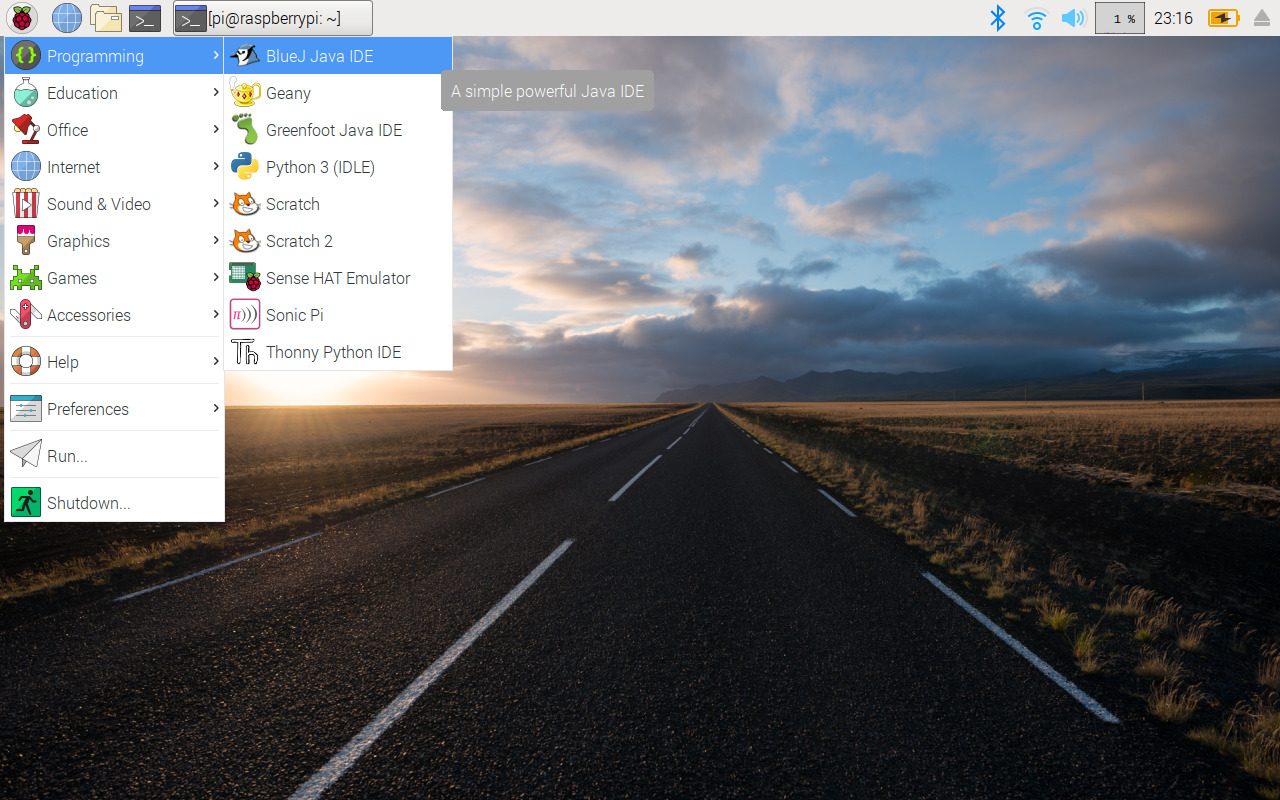
On Raspberry Pi 5, the OS takes advantage of specific hardware optimizations including Wayland display server support, which replaces the older X11 system for a smoother, more modern desktop experience. Performance improvements on Pi 5 compared to Pi 4 are noticeable — it’s a genuinely fast little desktop now.
The software library includes Python, Scratch, Sonic Pi, Java, and a whole range of programming and educational tools out of the box. It’s also the best platform if you’re exploring Raspberry Pi AI projects given the Foundation’s own AI camera and HAT+ accessories are all designed around it.
Best for: Beginners, general computing, education, programming projects
Pi 5 Support: Full native support with hardware optimizations
Minimum RAM: 512MB (Desktop version needs 1GB+)
Ubuntu 24.04 LTS for Raspberry Pi
If you already live in the Ubuntu ecosystem on your main computer, running Ubuntu on your Raspberry Pi just makes sense. Ubuntu 24.04 LTS (Noble Numbat) has solid Raspberry Pi support and is one of the most popular choices for developers in 2026.
A few things to know before you jump in: Ubuntu for Raspberry Pi is 64-bit only, so it won’t run on older Pi 2 or early Pi 3 boards without some workarounds. More importantly, the full desktop version is hungry — you’ll want a Pi 4 or Pi 5 with at least 4GB of RAM for a comfortable experience. The Server edition is much lighter and works well even on Pi 4 2GB models.
The big advantage Ubuntu has over Raspberry Pi OS is the software ecosystem. You get access to a wider range of packages, better Docker support, and a more familiar environment if you’re used to Ubuntu on x86 machines. For developers who want to run AI on Raspberry Pi or set up more complex server stacks, Ubuntu is often the better fit.
The downside? It doesn’t have the tight hardware integration that Raspberry Pi OS has. Some GPIO and camera features need extra configuration that would work out of the box on the official OS.
Best for: Developers, Ubuntu users, server workloads, Docker projects
Pi 5 Support: Yes, full 64-bit support
Minimum RAM: 4GB for desktop, 1GB for server edition
Recalbox
If you want to turn your Raspberry Pi into a retro gaming machine, Recalbox is one of the most beginner-friendly ways to do it. It supports a huge range of arcade machines and classic game consoles — everything from 8-bit systems right up through 32-bit era hardware — and the setup process is genuinely simple compared to alternatives.

Now, the honest comparison you need to know: RetroPie is still the more popular choice in 2026. It has a larger community, more emulator options, and deeper customization. If you’re comfortable tinkering with configuration files and want maximum flexibility, RetroPie is probably where you’ll end up. But if you want something that just works without much fuss, Recalbox is the easier on-ramp.
Recalbox has been updated with Pi 5 compatibility, which opens up better performance for more demanding emulators. The OS supports a wide variety of controllers — gamepads, joysticks, arcade sticks — and you can check the full compatibility list on the Recalbox website before you buy any hardware.
Best for: Retro gaming (beginner-friendly option)
Pi 5 Support: Yes
Minimum RAM: 1GB
vs RetroPie: Less customizable but easier to set up
You can find a list of everything supported on the Recall box website to help you get started.
Rune Audio
A quick note here: the original version of this article mentioned Rune Audio, but that project has been largely abandoned and is no longer actively maintained in 2026. Volumio is now the clear leader for audiophile music server builds on Raspberry Pi, and that’s what we recommend.
Volumio turns your Raspberry Pi into a high-quality network music player with a polished web-based interface you can control from any browser on your home network — phone, tablet, laptop, doesn’t matter. It supports all the audio formats you’d care about: FLAC, WAV, MP3, AAC, and DSD playback for those who want to go deep into high-resolution audio territory.
What makes Volumio stand out is the active development and the plugin ecosystem. You can add Spotify Connect, Tidal, Qobuz, and other streaming services through plugins. There’s also a mobile app if you prefer that over the browser interface. The free version covers everything most people need, and there’s a Volumio Virtuoso subscription for premium streaming integrations.
It works great on Pi 4 and Pi 5, and the Pi 5’s improved processing power means you can run more demanding audio processing without any hiccups. Pair it with a quality DAC HAT and you’ve got a music server that punches well above its size.
Best for: Audiophile music servers, network audio streaming
Pi 5 Support: Yes
Minimum RAM: 1GB
Libreelec
If you want to replace your Roku, Apple TV, or Chromecast with a Raspberry Pi, LibreELEC is the OS to reach for. The project describes itself as “just enough OS for Kodi” — and that’s exactly right. It boots straight into Kodi and nothing else, which means it’s fast, lean, and totally focused on the media center experience.
The current version is LibreELEC 12.x running Kodi 21 Omega, and it has native support for Raspberry Pi 5. On Pi 5 hardware, you get proper 4K HDR playback with hardware video decoding — which is a genuine upgrade over what Pi 4 could manage. If you’re building a living room media center, this is a meaningful improvement.
Compared to OSMC (another Kodi-based distro), LibreELEC is more stripped back and generally more stable in a set-it-and-forget-it media center role. OSMC gives you more of a full OS underneath Kodi if you ever need to drop into a terminal, but for most people running a media center, LibreELEC’s simplicity is an advantage, not a drawback.
One thing to keep in mind: LibreELEC is not a general-purpose OS. You can’t install other apps or use it as a desktop. It does one thing and does it very well.
Best for: Media centers, Kodi streaming, replacing streaming sticks
Pi 5 Support: Yes, with 4K HDR and hardware video decoding
Minimum RAM: 1GB
Open Media Vault
OpenMediaVault is what you install when you want your Raspberry Pi to do actual work. It’s a NAS (Network Attached Storage) operating system based on Debian, and it’s the go-to choice for building a home server or small business file server on Pi hardware.
The current version is OpenMediaVault 7 (codename Sandworm), and it’s a solid step up from older versions. For hardware, you’ll want a Pi 4 with 4GB RAM or a Pi 5 — the extra RAM matters when you’re running multiple services and the web admin interface simultaneously. A Pi 3 will technically work but you’ll feel the limitations quickly.
One important recommendation: use an SSD rather than a spinning hard drive where possible. For the OS itself, boot from a microSD or USB drive. For your actual NAS storage, an external SSD connected via USB 3.0 (or NVMe on Pi 5) gives you significantly better read/write speeds than a traditional hard drive in this kind of setup.
OMV 7 has a growing plugin ecosystem through Docker and Portainer integration, which means you can layer on additional services — media managers, download clients, monitoring dashboards — all managed through the same web interface. Services like SSH, SFTP, SMB/CIFS, and FTP are all available out of the box.
Best for: Home NAS, home server, small business file storage
Pi 5 Support: Yes (Pi 5 recommended for best performance)
Minimum RAM: 1GB (4GB+ recommended)
DietPi
DietPi is the OS for people who want maximum performance with minimum resource usage. Where most Linux distros come loaded with software you may never use, DietPi starts with almost nothing and lets you add exactly what you need through its own automated software installer.
The numbers are genuinely impressive: DietPi can run with as little as 256MB of RAM and its base installation uses around 400MB of storage — far less than any other distro on this list. That makes it ideal for Pi Zero 2 W projects, headless server builds, and anything where you need to squeeze every bit of performance out of limited hardware.
The DietPi-Software tool is one of its best features. It’s a simple menu-driven installer that lets you add pre-configured software packages — things like Pi-hole, Nextcloud, Plex, Home Assistant, and dozens more — without having to manually configure each one from scratch. It’s a huge time saver.
DietPi works across the full range of Pi hardware including Pi 5, and it’s actively maintained with regular updates. If you’re comfortable with a headless setup and SSH, this is one of the most capable lightweight distros available in 2026.
Best for: Lightweight servers, Pi Zero builds, headless setups, IoT projects
Pi 5 Support: Yes
Minimum RAM: 256MB
Kali Linux
Kali Linux has been the go-to penetration testing OS for years, and in 2026 it’s still the standard. Packed with hundreds of security tools covering web application testing, network analysis, wireless security auditing, and much more, it’s what professional security researchers and ethical hackers reach for.
The current release is Kali Linux 2026.x, which brings full ARM64 support — meaning you get the complete Kali tool collection running natively on Raspberry Pi 5 and Pi 4. This is a significant upgrade from earlier ARM releases that sometimes had gaps in tool availability.
For the full Kali desktop experience on a Raspberry Pi, the Pi 4 with 8GB RAM is the recommended configuration in 2026. The Pi 5 takes it further with noticeably snappier performance when running multiple tools simultaneously. If you’re just using it headless for specific network tasks, it’ll run on less, but the desktop environment gets cramped on 2GB or less.
One important note: Kali Linux is a specialist tool for security professionals and people learning ethical hacking in controlled, legal environments. Using its tools against networks or systems you don’t have explicit permission to test is illegal. The Kali Linux project is clear about this, and so are we.
Best for: Penetration testing, cybersecurity learning, ethical hacking labs
Pi 5 Support: Yes, full ARM64 support
Minimum RAM: 2GB headless, 4GB–8GB for desktop use
How to Install Any OS on Your Raspberry Pi
The easiest way to get any OS onto your Raspberry Pi in 2026 is through the official Raspberry Pi Imager tool. It’s free, works on Windows, macOS, and Linux, and it supports nearly every OS mentioned in this guide — not just the official Raspberry Pi OS.
Here’s the quick process:
1. Download Raspberry Pi Imager from the official Raspberry Pi website
2. Insert your microSD card (or USB drive / NVMe SSD for Pi 5)
3. Open Imager, click “Choose OS” and select from the built-in library or load a custom image
4. Click the settings gear icon — this is where it gets really useful. You can pre-configure your WiFi network name and password, enable SSH, and set a hostname before you even boot up
5. Click “Write” and wait for it to flash and verify
6. Pop the card into your Pi and power it on
The pre-configuration step alone saves you so much time, especially if you’re setting up a headless server like OpenMediaVault or DietPi where you don’t want to connect a monitor and keyboard at all.
For Pi 5 users running NVMe SSDs, you’ll want to update your bootloader firmware first before trying to boot from NVMe — the Imager tool can help with this too.





You forgot to mention, that Raspbian OS is only 32 bit and doesn’t support 8GB RAM Raspberry PI 4B.
Manjaro ARM is one of the best OS’s, but there is not H264 codec for VLC 🙁